Besides the ready-made catalog of background videos, you can add your own video to a screen — an ad clip or a branded sting, for example. Uploading is done through the Video component in manual selection mode.
Add the «Video» component
In the screen editor open a scene, in the Layers card click + Component and pick Video. Then select the added layer and click Configure.
Switch the mode to «Manual selection»
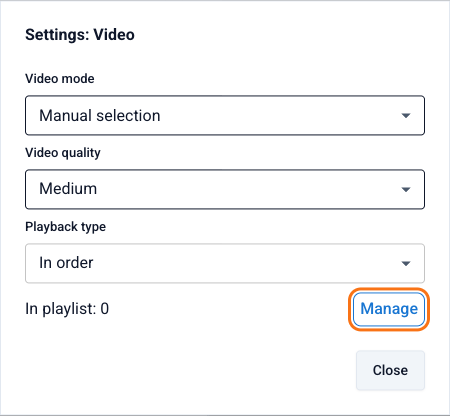
In the component settings the Video mode field is set to "Random by category" by default. Switch it to Manual selection — then you decide which clips play and get access to uploading. After switching you'll see Playback type (ordered or random) and the Manage button.
«Manual selection» mode reveals the «Manage» button Open the manager and upload a video
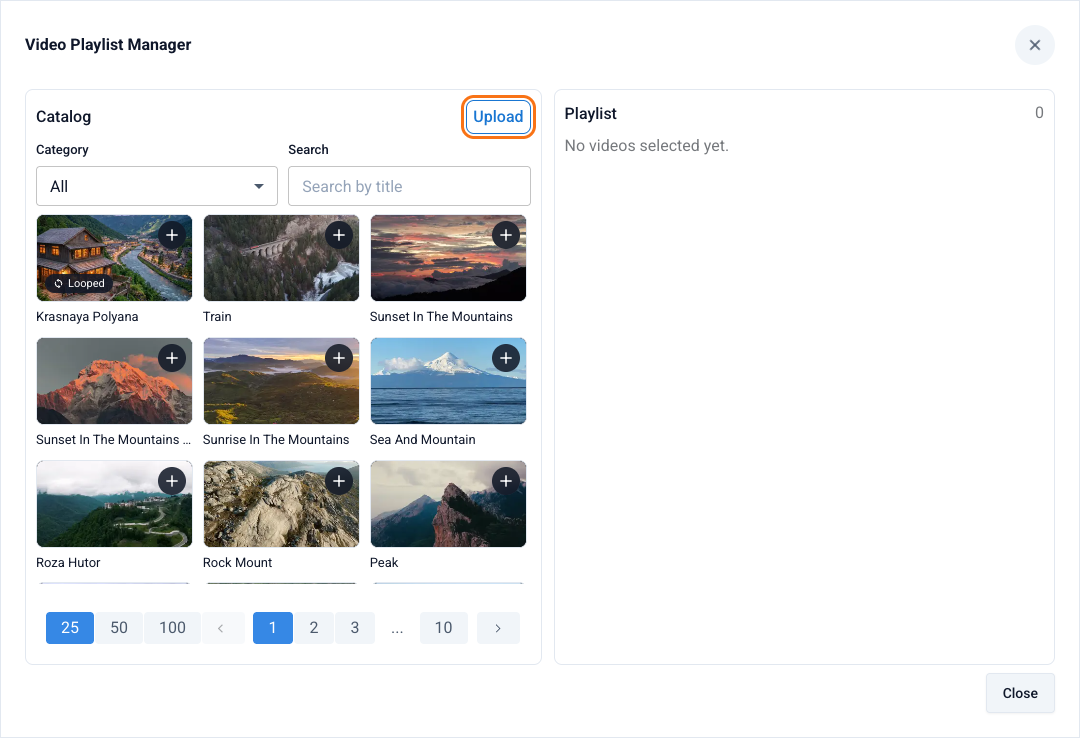
Click Manage — the Video Playlist Manager opens: the catalog of clips on the left, your component's playlist on the right. Click the Upload button above the catalog and pick a video file on your computer. After uploading, the clip appears with a processing status — to see only your files, choose My uploads in the Category filter.
The «Upload» button above the catalog Add the video to the playlist
Once the clip is processed, click + on it to move it into the component's playlist (right column). The order of clips in the playlist is editable — it matches the "Ordered" mode. Close the manager and save the screen.
An uploaded video is processed for a while — a "Processing" badge is shown on its preview. You can't add a clip to the playlist until processing finishes.
Your own and catalog videos can be mixed in one playlist. Looped clips are marked with a "Looped" badge — they work well for a seamless background.
Open Screen Studio