An API key lets external services and your own scripts access Tunio on behalf of your account — for example, to connect Tunio MCP or upload podcast episodes via the API. Keys are created in the API Keys section of the left menu.
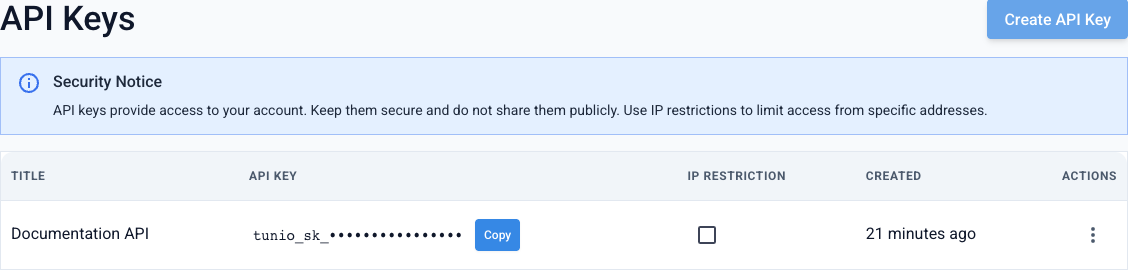
How to create a key
Open the «API Keys» section
In the left menu, under the «Account» group, choose API Keys.
Create a key
Click Create API Key and set a name you'll recognize the key by later (for example, "Production API" or "Podcast upload").
Give the key a clear name Copy the key
After creation the key appears in the list — click Copy and store it in a safe place. In requests it's passed in the
Authorization: Bearer YOUR_KEYheader.

An API key gives access to your account. Don't publish it in screenshots, repositories, or chats. If a key is exposed — delete it in this section and create a new one.
IP restriction
For extra protection, each key can have IP restrictions enabled: when active, requests are accepted only from addresses in the whitelist. Open Manage Whitelist in the key's actions and add the needed IP addresses — for example, your server's address.
IP restrictions are handy when a key is used on a specific server with a static address. If requests come from dynamic addresses, leave restrictions off.
Create an API key