An announcement block is a named set of announcements that goes on air as a single unit. Instead of scheduling each announcement separately, you group them into a block, set the order, and manage the whole set at once: "every 60 minutes — two announcements from the block, in order".
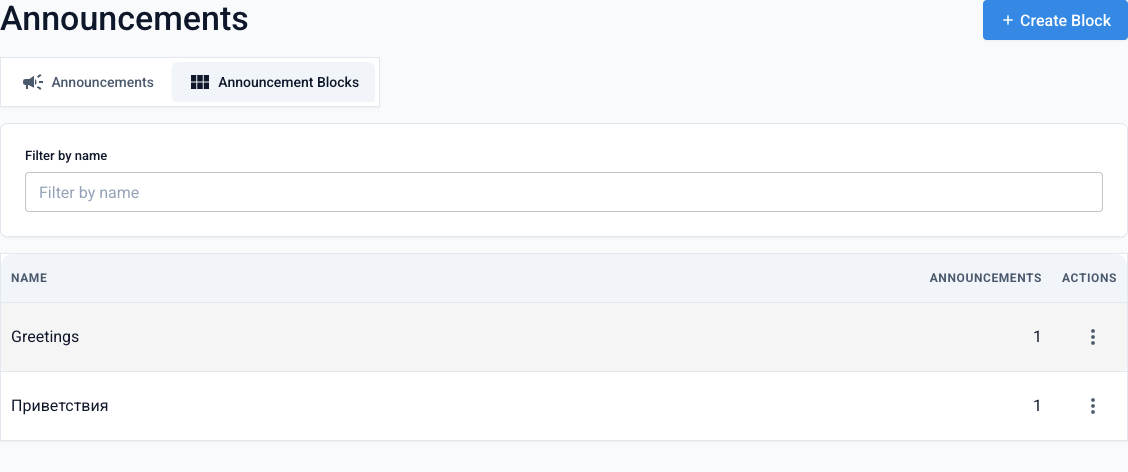
Blocks live on the neighboring tab of the Announcements section — Announcement Blocks.
How to create a block
Create a block
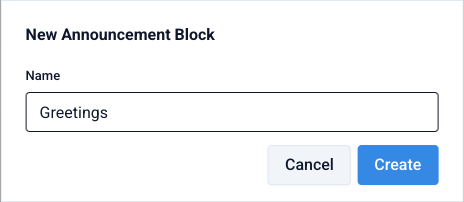
On the Announcement Blocks tab click Create Block and give it a name — for example, "Club announcements" or "Greetings". After creation you land on the block's page.
Fill it with announcements
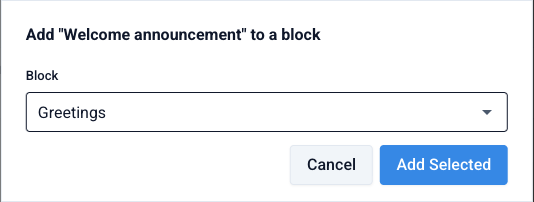
Go back to the Announcements tab, open the ⋮ menu of an announcement and choose Add to Block. In the dialog pick the block and click Add Selected.
Only finished announcements — with the "Ready for rotation" status — can be added to a block. One announcement can belong to several blocks at the same time.
Contents and play order
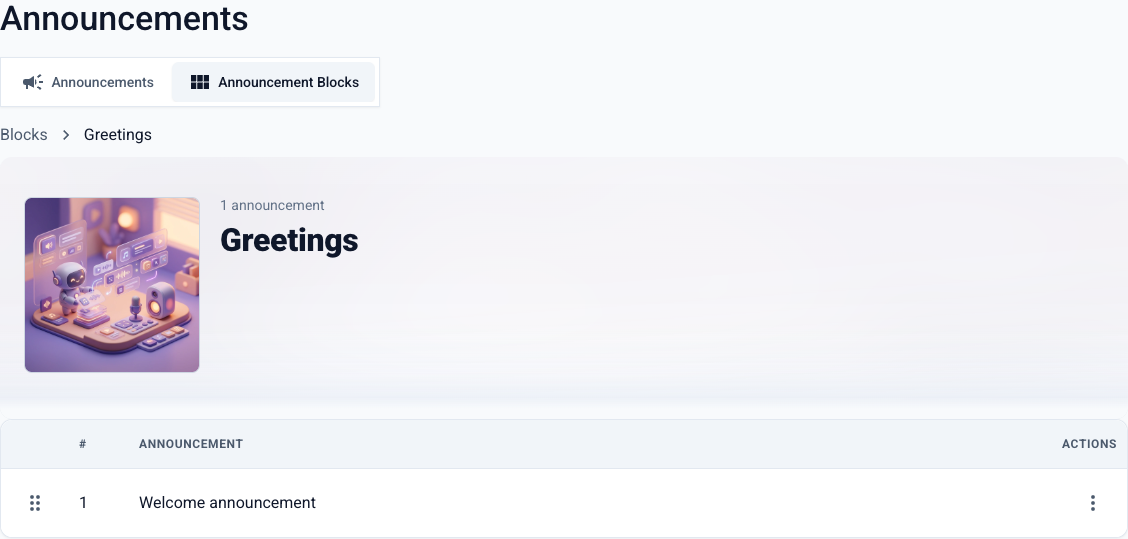
Open a block to see what's inside. Reorder announcements by simply dragging the handle on the left of each row — this is the exact sequence they will play in Sequential mode. Via the ⋮ menu you can remove an announcement from the block (the announcement itself is not deleted) or open its analytics.
Block schedule
In the block's ⋮ menu choose Schedule. Rotation is configured per station:
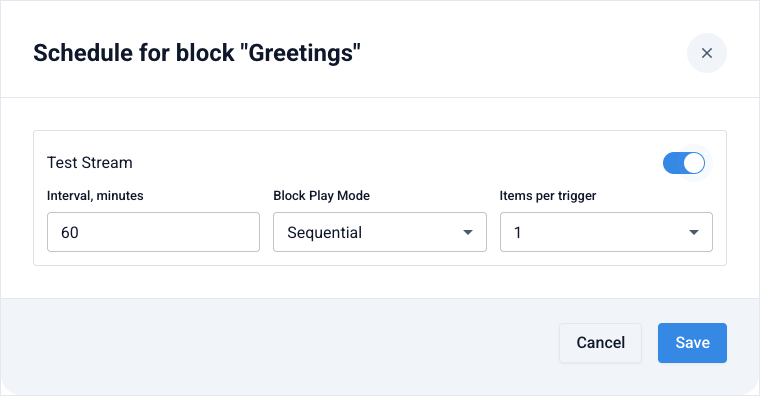
- Interval, minutes — how often the block goes on air (60 by default).
- Block Play Mode:
- Sequential — announcements cycle through in the configured order. The system remembers the position for each station: if items 1–2 played this time, items 3–4 go next.
- Random — announcements are picked randomly, but never repeat within a single trigger.
- Items per trigger — how many announcements from the block play back-to-back per appearance: a specific number or All.
Enable the toggle for the stations you need and click Save.
A block never interrupts the current track — announcements queue up neatly and play right after it, one by one. And when first enabled, the system automatically offsets blocks in time so that several blocks with the same interval don't go on air simultaneously.
A block in the stream schedule
If a batch must air at an exact time rather than "every N minutes", add the block as a slot in the stream schedule: when creating the slot, pick the "Announcement block" content type along with the play mode and item count. Such a slot fires exactly at the scheduled time.
Deleting a block
A block can be deleted from the ⋮ menu in the blocks list. Its announcements stay in your library.
If schedule slots reference the block, they will stop working after the block is deleted. Remove the block from schedules first.
Create an announcement block