A screen is built from scenes, and scenes from components. This article covers how both work and how to configure them.
Scenes
A scene is one "frame" of the screen. Scenes play in a loop, so several scenes make a slideshow: e.g. a menu scene, then a promo scene, then a schedule scene.
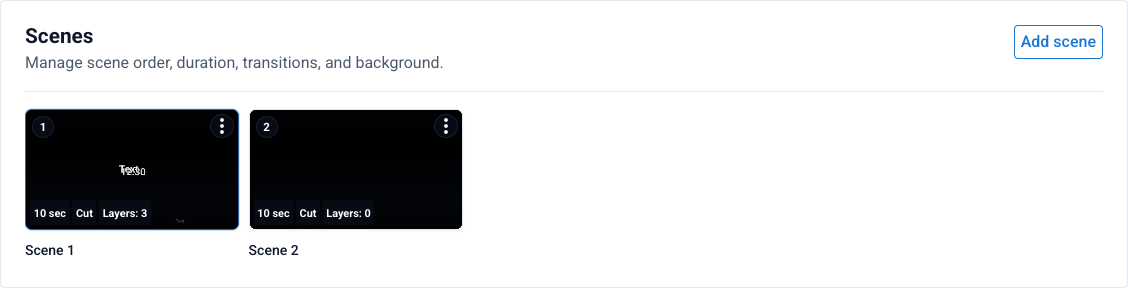
In the Scenes card each frame is a tile showing its duration, transition type, and layer count. The Add scene button creates a new frame, and the ⋮ menu on a tile lets you open the scene's settings, duplicate, or delete it. The scene settings include:
- Name and display duration in seconds.
- Transition to the next scene:
Cut(instant),Fade(smooth),Slide(slide-in). - Background type: solid color (
Solid) or a CSS gradient (Gradient).
To edit a specific scene's layers, select its tile first — the Layers card and the preview always reflect the active scene.
Components
Components are added to the active scene with the + Component button in the Layers card.
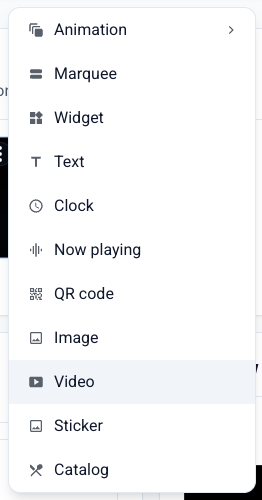
Available components:
- Animation — animated effects.
- Marquee — horizontally scrolling text.
- Widget — an embeddable widget.
- Text — a static label.
- Clock — current time with format and time-zone options.
- Now playing — the title and cover of the current track.
- QR code — a code with a link (e.g. to a menu or promo).
- Image — a static picture.
- Video — a video background or clip.
- Sticker — a decorative element.
- Catalog — a showcase from the music catalog.
Managing layers
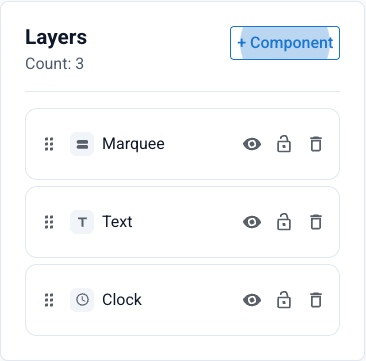
Each layer in the list can be dragged (to change stacking order), hidden, locked, or deleted. Layers higher in the list appear on top of the others.
Component settings
Select a layer and click Configure — a panel opens with that component's parameters. For a marquee, for example, you set the text, color, font weight, position (top/bottom), speed, and the pause between repeats.
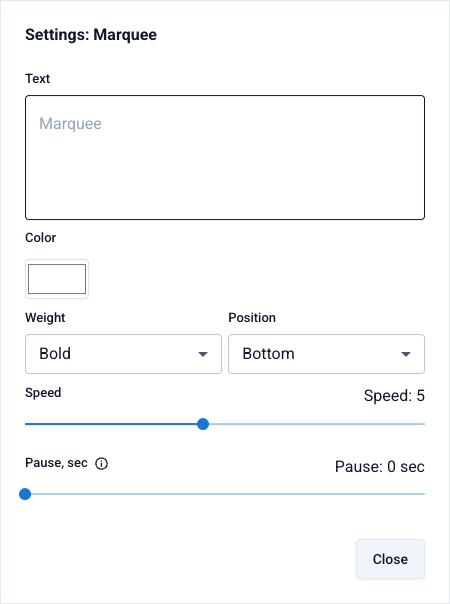
Every component has its own set of fields: the clock has format and time zone, the QR code has a link and styling, "Now playing" has what to show and how. A layer's position and size are changed right on the preview canvas — the grid and snapping make it easy to align elements.
Open Screen Studio