Jingles are short branded stingers between tracks: a voice ID of your station, a musical transition, a piece of your on-air identity. The Jingle Generator creates them right inside Tunio: you describe the text and the music style — AI produces a ready-to-air jingle with voice and music.
The generator lives in the Jingles section of the left menu, on the Jingle Generator tab.
How to generate a jingle
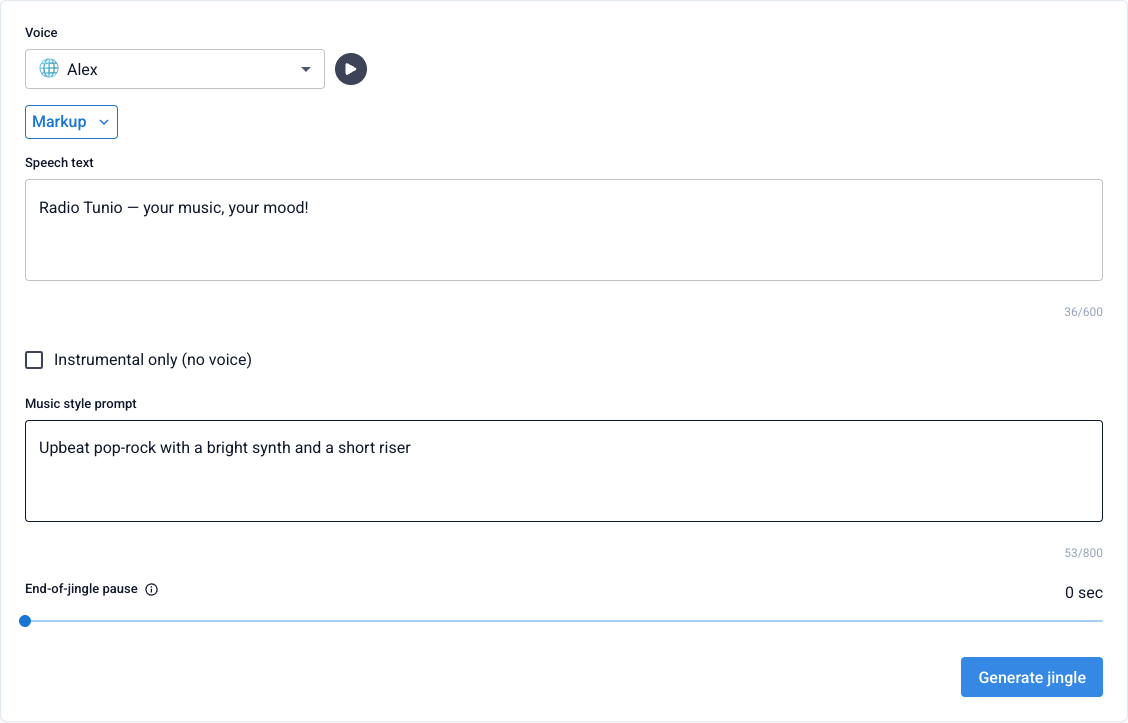
Voice
Pick the AI voice that will read your jingle text. Every voice can be previewed, and voices that support inline markup get a Markup button — intonation tags right inside the text.
Speech text
Write what should be said (up to 600 characters) — your station slogan, for example.
Instrumental only (optional)
If you don't need a voice, enable Instrumental only — the voice and text fields are disabled, and a music duration slider appears instead (5 to 30 seconds).
Music style prompt
Describe the sound you want (up to 800 characters): genre, mood, instruments — for example, "upbeat pop-rock with a bright synth".
End-of-jingle pause (optional)
Add a pause of up to 5 seconds if crossfade is enabled in your broadcast sound settings — the pause should match the crossfade duration so the transition doesn't swallow the jingle.
Click Generate jingle. The request appears in the list below the form and goes through the Queued → Processing statuses — it usually takes about a minute. The finished jingle can be previewed right in its card.
Not happy with the result? The card's ⋮ menu has Reuse prompt — the form is refilled with this jingle's parameters, so you can tweak the text or style and generate a new version. Delete the rejects via the same menu.
Jingle packages
Jingles go on air not one by one but in packages — collections attached to the stream schedule. You can build several packages for different stations or moods, and one jingle can belong to several packages at once.
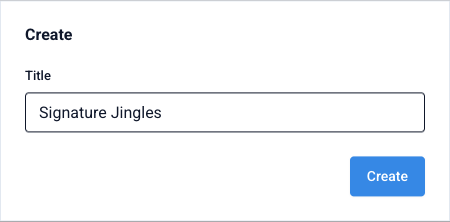
A package is created on the My packages tab with the Create button:
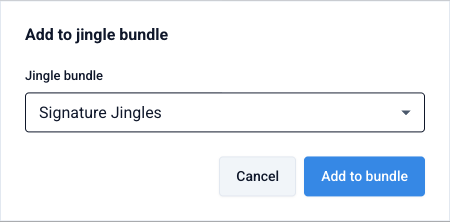
To add a generated jingle to a package, open the ⋮ menu of its card in the generator and choose Add to bundle:

The package contents are visible on its page: here a jingle can be renamed, temporarily disabled with the Active checkbox, or removed from the package. The Add jingle to playlist button also lets you pick from previously uploaded jingles or upload your own audio file.
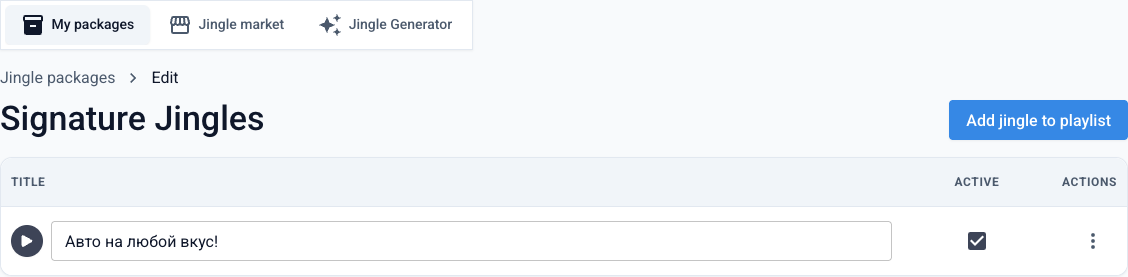
Besides the generator, ready-made jingles are available on the Jingle market tab — add them to your package in one click.
Attaching a package to the schedule
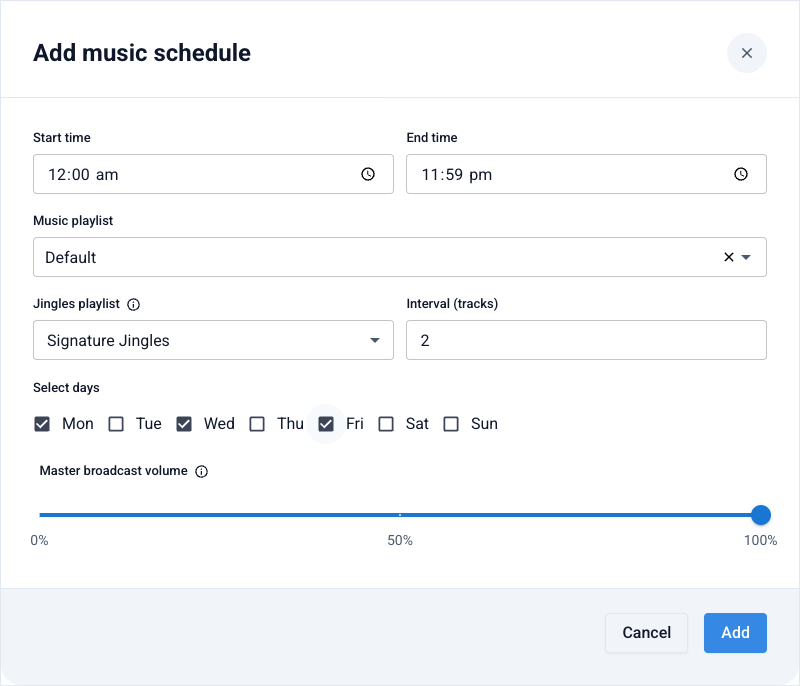
A jingle package is pinned to a time slot of the music schedule. Open Broadcast Schedule (the Music layer) and click Add Schedule:
Time and playlist
Set the slot's time range, pick the music playlist and week days — just like in the regular schedule.
Jingles playlist
In the Jingles playlist field, select your package.
Track interval
In Interval (tracks), set how many tracks should play between jingles — with a value of 2, a jingle airs after every two tracks.
Within a package, jingles rotate fairly: each time the system picks the one that hasn't played for the longest — so all jingles in the package get even airtime with no accidental back-to-back repeats. A jingle never interrupts the music; it queues up right after the current track.
Jingles play only in the time slots that have a package selected. If you want the same package all day long — set it on every slot of the schedule.
Generate your first jingle