A finished screen can be previewed right in the dashboard, shown on a TV panel through the app, or opened by link in a browser. Before showing it, make sure the screen is saved (the "Save screen" button in the editor).
Preview in the dashboard
The quickest way to check the result is the Open button in the editor or on the screen's card in the list. It opens the player page — how the screen looks on a device in real time.
On the list page all your screens are gathered with previews, resolution, scene count, and total duration. From there a screen can be edited, opened in the player, or deleted.
Showing on a TV panel via Tunio Link
Screens are shown on a device together with the broadcast — through Tunio Link (the Tunio Spot app on a TV box, mini-PC, or Smart TV). Linking is done in the Spot Links section:
Create or open a link
In the Spot Links section click Create Link (or open an existing one).
Pick a stream and a screen
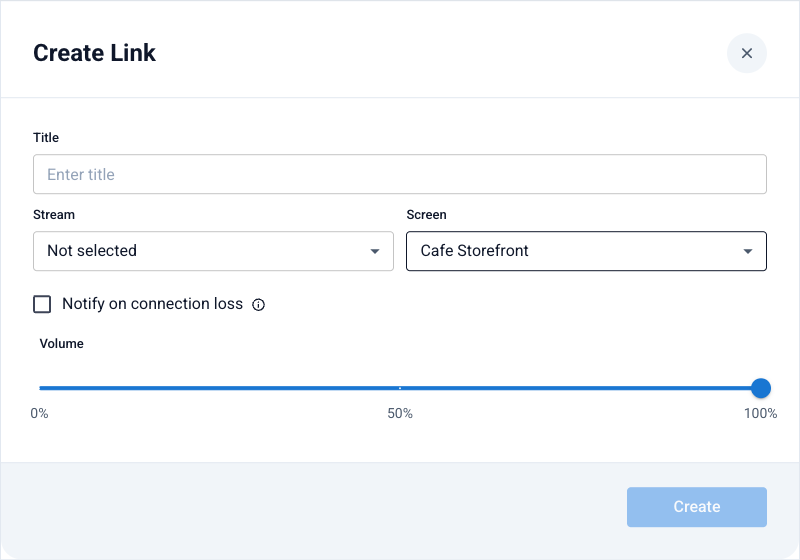
Choose a stream for the audio and select the screen in the Screen field. This way one PIN code gives the device both the music and the picture.
The «Screen» field binds the screen to the link Connect the device with the PIN code
In the Tunio Spot app, enter the link's PIN code — playback starts and the screen opens automatically.
Changes to a screen reach all connected devices automatically — no need to reconnect the box or re-enter the PIN. Edit a menu board in the dashboard and it updates on every panel.
Opening in a browser
The Open button leads to the player page (/screen-player/…) — it can be opened on any device with a browser in fullscreen. Handy when a panel has no box but does have a built-in browser.
Set the resolution and orientation (landscape/portrait, including custom) to match the specific panel — the choice is in the editor header and on the preview canvas.
Go to screens