A weather forecast makes your stream more informative: Tunio regularly builds a fresh audio episode with the weather for your chosen cities, and you put it on air — on an interval or at an exact time via the schedule. The Weather Forecasts section lives in the left menu, under General Settings.
The episode is regenerated automatically throughout the day, and the forecast's timezone determines when "tomorrow" starts and a new episode should be built. Weather data and the city list are provided by openweathermap.org.
How to create a forecast episode
Click Create weather forecast in the top right corner of the section.
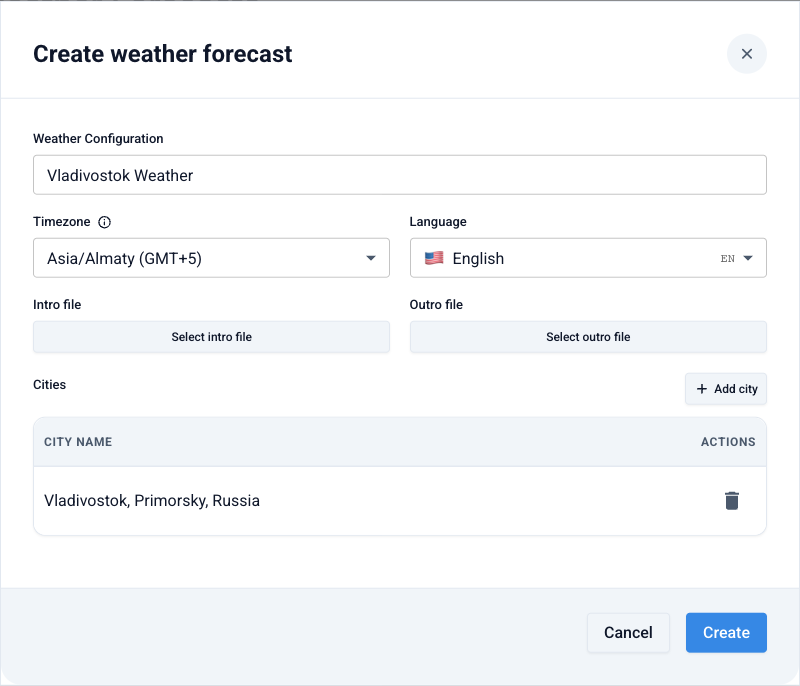
Title and timezone
For example, "Vladivostok Weather". Pick the timezone of the region you're forecasting for — it determines when the episode is regenerated.
Episode language
The language the forecast will be voiced in.
Intro and outro (optional)
Audio files that play before and after the episode — for example, a branded "And now — the weather" sweeper.
Add cities
Click Add city and find the city via search — English names work best (for example, Vladivostok). One episode can include up to 7 cities; the Create button stays disabled until at least one city is added.
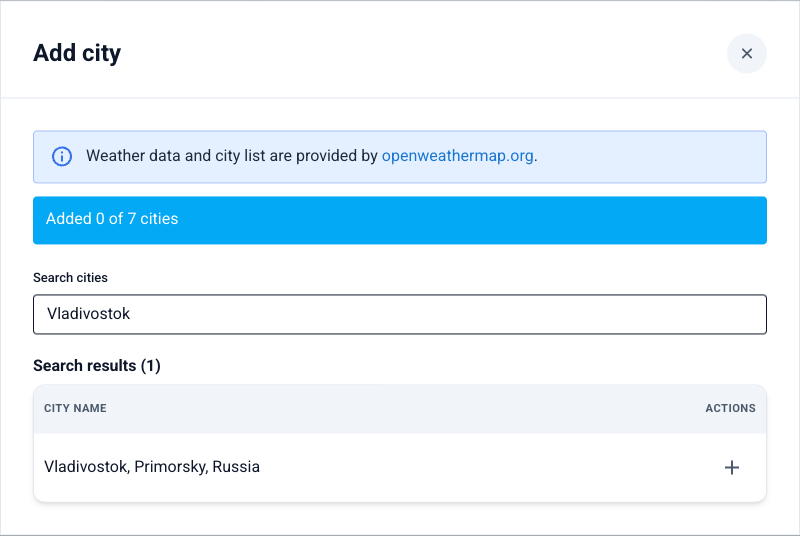
Click Create — the forecast appears in the list with the Active status.
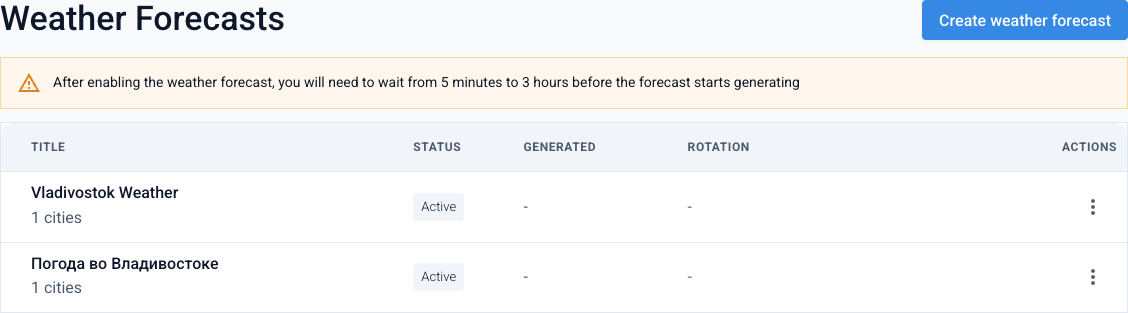
After enabling a forecast, the first generation takes from 5 minutes to 3 hours. Once the episode is ready, the list shows the generation date and a play button — make sure to listen to the result before putting it on air.
Via the ⋮ menu a forecast can be edited, temporarily deactivated, or deleted.
How to add the forecast to your stream
Option 1. Interval schedule
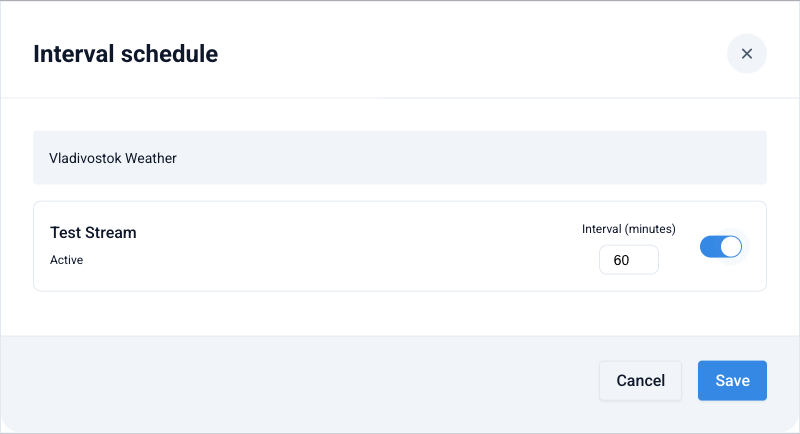
The forecast airs regularly, "every N minutes". In the forecast's ⋮ menu choose Interval schedule, enable the stations you need, set the interval in minutes, and click Save.
Option 2. A slot in the stream schedule
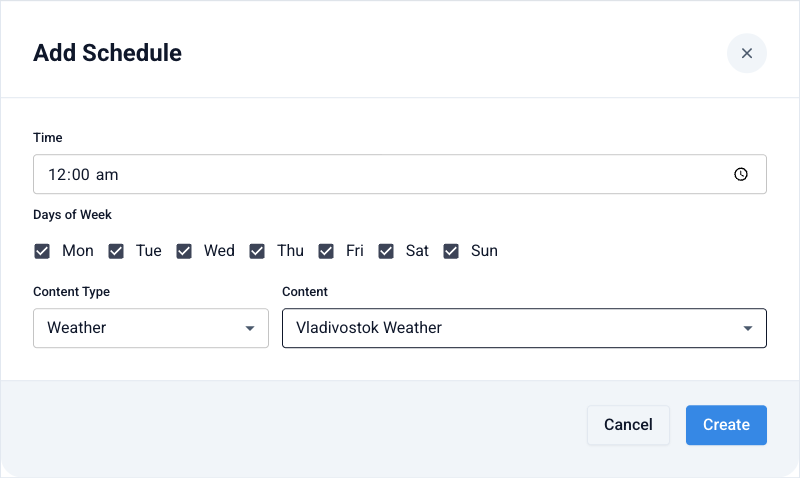
The forecast airs at an exact time — for example, at the top of every hour. Open Broadcast Schedule, switch to the Content layer and click Add Schedule: set the time and week days, pick the Weather content type and the episode you need.
The two options behave differently: the interval forecast never interrupts the music — it queues up and plays right after the current track, while a schedule slot fires exactly at the scheduled time, cutting off the current track. Choose a slot when precision matters ("weather at the top of every hour") and the interval when smooth playback matters.
Create a weather forecast