The Announcements section lets you create voice messages for your streams: promotions, greetings, reminders for your visitors. You write the text — Tunio voices it with an AI voice. A finished announcement can go on air once, run on a recurring interval schedule, or be combined with others into blocks.
You'll find the section in the left menu, under General Settings.
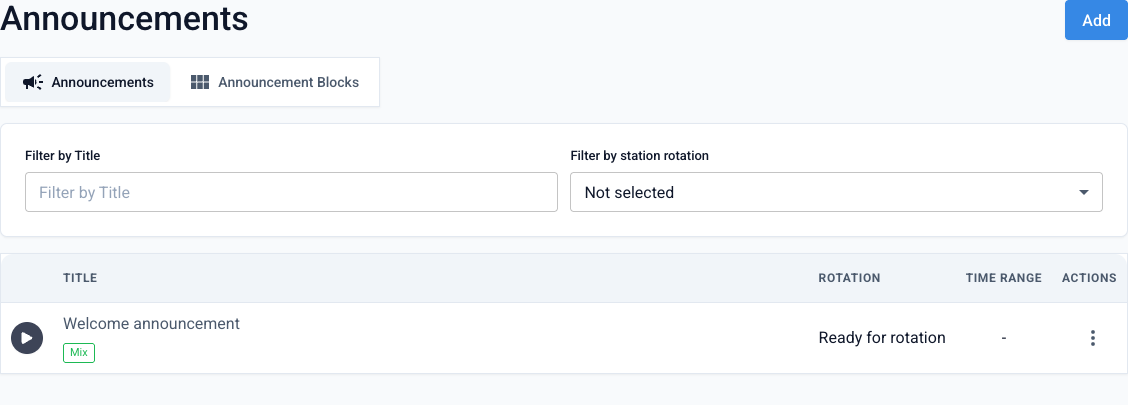
How to create an announcement
Click the Add button to open the new announcement form.
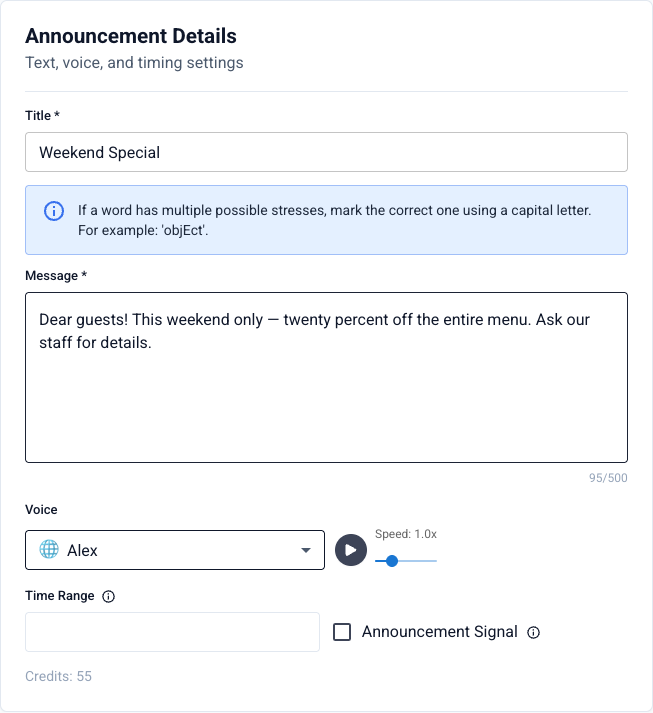
Title
Give your announcement a name — this is how it will appear in the list.
Message
Enter the text to be voiced (up to 500 characters). If a word has multiple possible stresses, mark the correct one with a capital letter — for example, 'objEct'.
Voice and speed
Pick an AI voice from the list and adjust the speech speed if needed. Every voice can be previewed.
Time range (optional)
Set the period during which the announcement should run — handy for seasonal promotions. Outside this range the announcement won't go on air automatically.
Announcement signal (optional)
Enable a sound signal before and after the announcement to catch your listeners' attention.
Voice generation consumes credits: the cost depends on the text length and the selected voice, and is shown at the bottom of the form before you start. Your credit balance is visible in the dashboard header.
Double-check the text and click Generate Voice.
Generation status
Generation takes less than a minute: the announcement goes through the voicing and mixing queue and then gets the Ready for rotation status. On the announcement page you can listen to the generated voice and the final file.
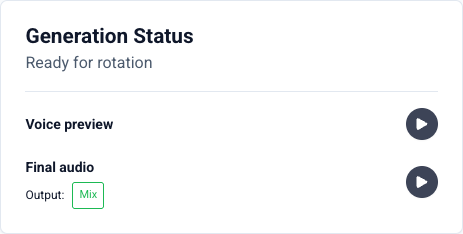
While generation is in progress, the announcement is temporarily locked for editing. Changing the text or voice after generation will start the voicing over.
Background music
You can add a music bed under the generated voice. On the announcement page click Add music, then Select background — a catalog of background tracks matched to your announcement's duration will open.
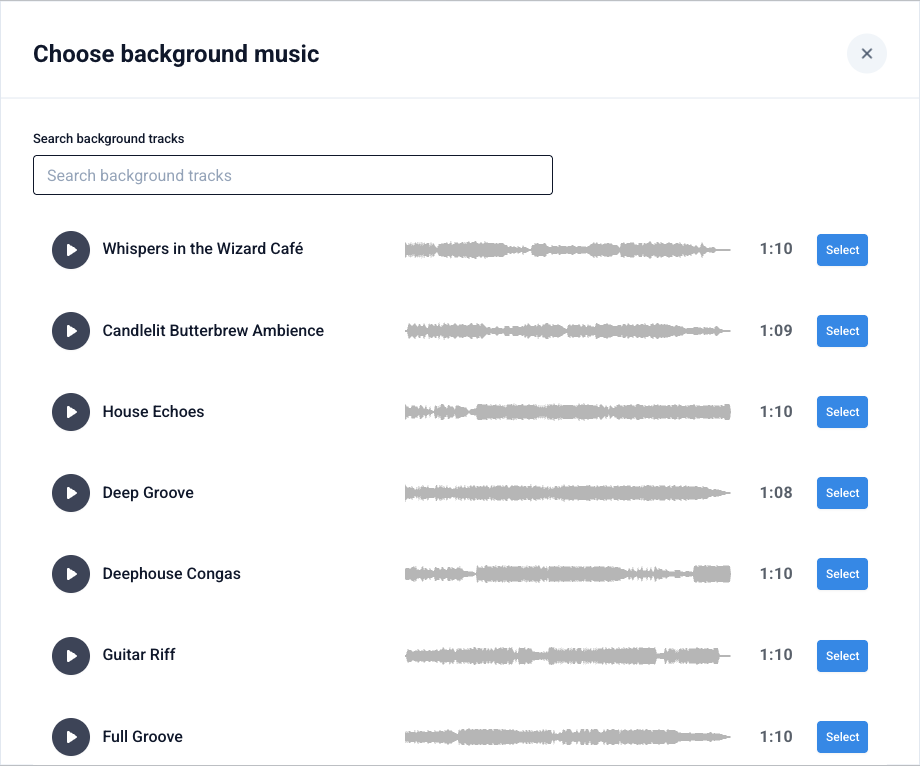
Every track can be previewed right in the catalog. After picking one, adjust the background volume, check the result with the Preview mix button, and click Apply background — the system will mix the voice with the music into a final file. In the announcements list such items are labeled Mix; voice-only ones are labeled Voice only.
Putting an announcement on air
All actions for a finished announcement live in the ⋮ menu on the right side of its row.
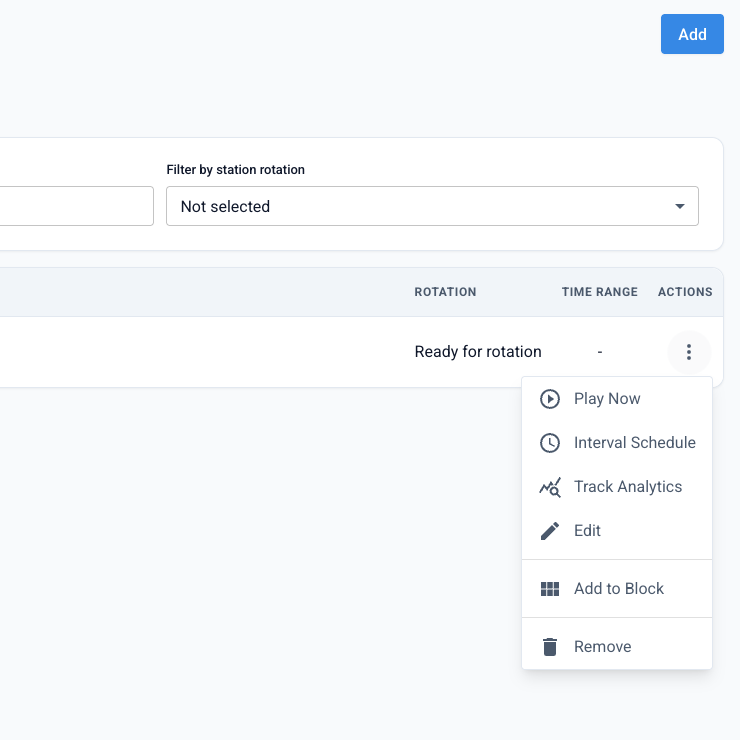
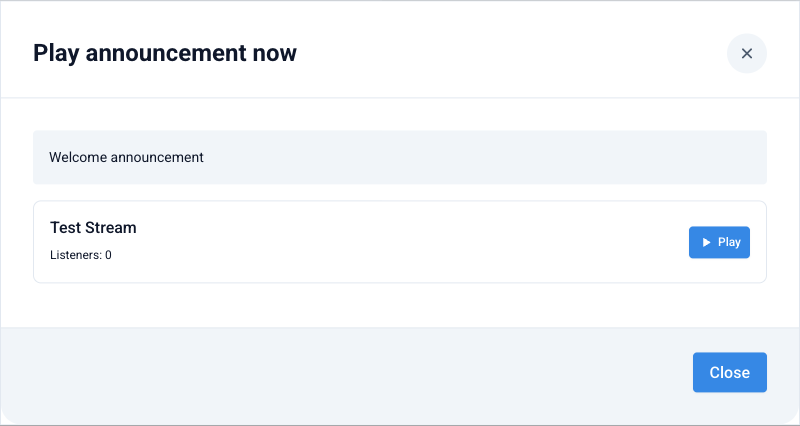
Play Now
Sends the announcement on air immediately. Pick a station from the list and click Play — the announcement will be heard by all its listeners right after the current track.
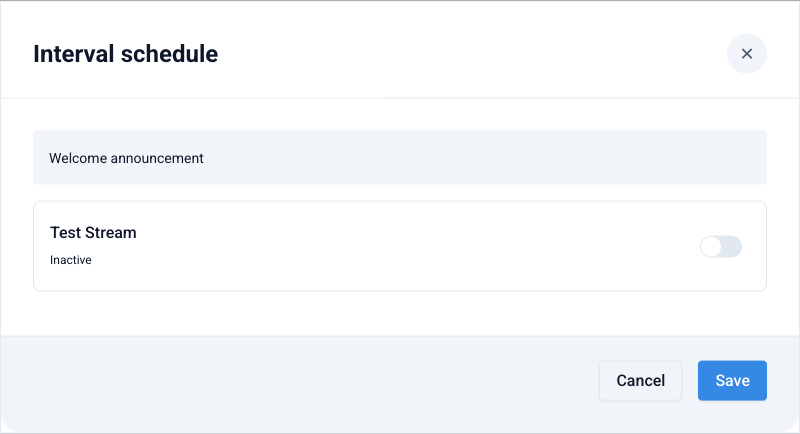
Interval Schedule
Puts the announcement into regular rotation. Enable the stations where it should play, set an interval in minutes for each, and save — the announcement will go on air automatically at that frequency.
Other actions
- Track Analytics — statistics on how often the announcement has aired.
- Edit — change the text, voice, time range, or background music.
- Add to Block — include the announcement in a block so several messages go on air together. Blocks are managed on the Announcement Blocks tab.
- Remove — delete the announcement permanently.
Create your first announcement